
You’ve probably heard about Capture The Flag (CTF) competitions on social networks such as LinkedIn, but have you ever wondered how to run one? Dreaming of organising an unforgettable CTF but not sure where to start? CTFd may be the ideal solution.
Among the most popular tools for running these competitions, CTFd stands out as an open-source platform that is simple to use yet powerful and flexible. This article covers everything you need to know about CTFd: its features, its advantages, and how to use it to create memorable competitions.
Before reading on, make sure you understand what a CTF is. If not, I recommend this article: CTF: improve your cyber skills with Capture The Flag.
CTFd: what is this CTF platform and why use it?
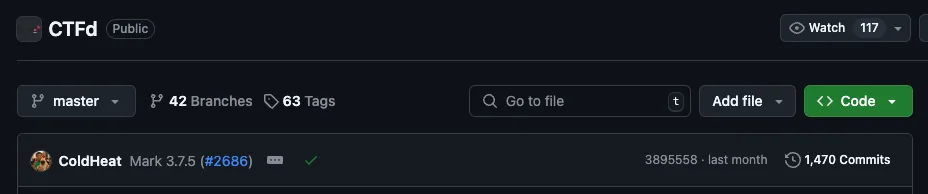
CTFd, pronounced “CTF-dee”, is an open-source platform built specifically for Jeopardy-style competitions. First launched in 2016 by Kevin Chung under the GitHub handle ColdHeat, CTFd quickly gained popularity thanks to its ease of use and flexibility.
ColdHeat is still active on the project: his latest contribution dates back less than a month.
CTFd lets competition organisers create and manage challenges for participants. The platform offers an intuitive interface for both administrators and players, and includes many features that make running a competition easier. And because it’s open source, it’s highly customisable and can be adapted to the specific needs of each event. We’ll go through CTFd’s other features in detail below.
CTFd: an active community
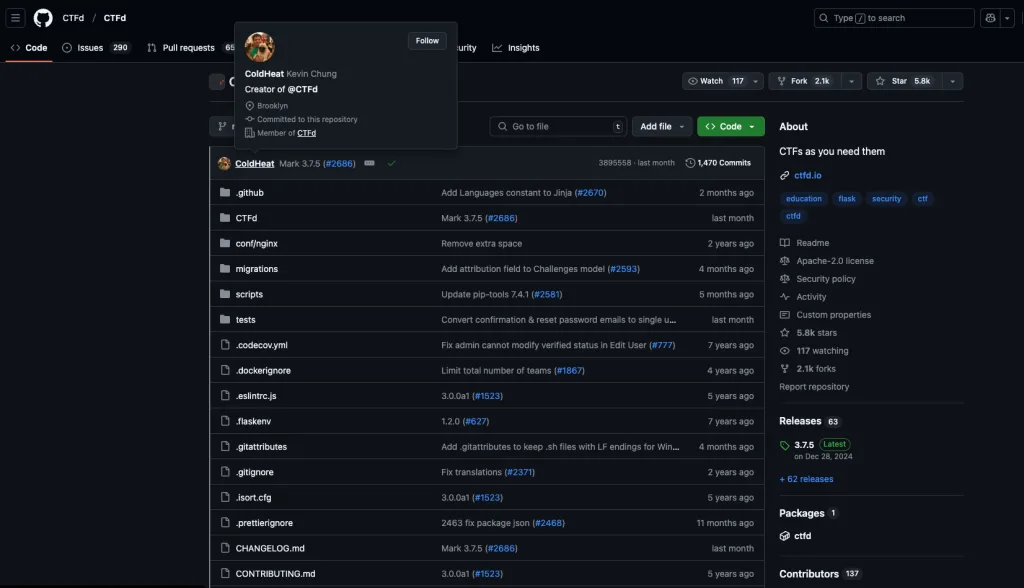
A look at the GitHub repository reveals several positive signs:
- The last commit is less than a month old, so the project is maintained, not archived;
- there are over 2,000 forks and nearly 6,000 stars;
- and 137 contributors.
A demo version of CTFd is available and resets every 30 minutes.
Use cases and examples
Education and academia
Many schools and universities use CTFd to teach cybersecurity hands-on. Students learn by solving concrete problems, which strengthens their grasp of technical concepts. The CyberWizards camp in Estonia, for example, ran its final CTF on CTFd.
In secondary schools, it’s used to raise awareness, spark new passions and help students make decisions about their future.
In the workplace
Companies use CTFd to test and improve their cyber teams’ skills, and above all to have a good time around exciting topics. Unlike academia, where scenarios can be far-fetched, companies opt for more realistic scenarios that test their employees’ skills.
CTFd’s main features

CTFd offers a wide range of features for organisers and participants alike. Here is a detailed look at what it can do:
Challenge and flag management
CTFd lets administrators create custom challenges, tailoring every aspect to their needs:
- Challenge creation and customisation: administrators can set titles, descriptions and categories, and even create challenges that unlock under specific conditions.
- Flag management: flags can be static or based on regular expressions. For advanced needs, custom flag plugins can be added.
- Hints: add hints that can be unlocked in exchange for points, giving participants strategic help.
- Downloadable files: provide users with resources to analyse, stored locally or in an Amazon S3-compatible object storage backend.
- Brute-force protection: limit attempts on each challenge to prevent abusive submissions.
Scoring and visualisation
CTFd includes a scoring system you can adapt to your context:
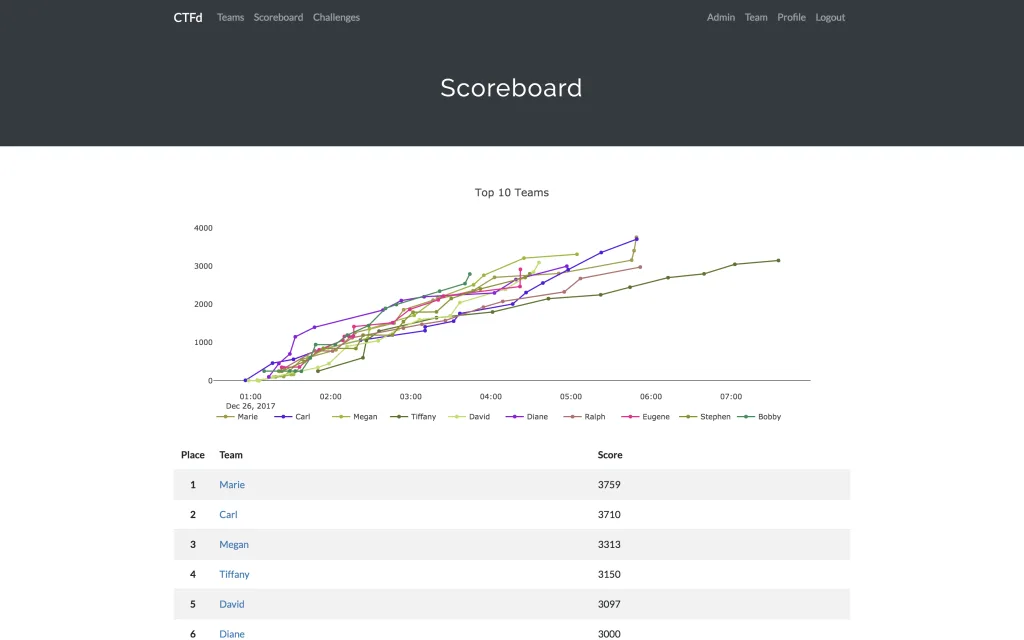
- Dynamic scoreboard: display team or player scores in real time, with automatic tie-breaking.
- Score freezing and hiding: administrators can hide public scores or freeze the scoreboard at a set time for a more strategic finish.
- Progress charts: compare the performance of the top 10 teams and follow each team’s progress through graphs.
Participant and team management
- Participation modes: users can play solo or form teams to collaborate.
- Admin tools: administrators can hide, manage or ban users and teams when needed.
- User account management: includes email confirmation, password reset and user profile management.
Content system and automation
- Markdown CMS: use the Markdown-based content management system to create pages and provide clear instructions.
- Automatic scheduling: set competitions to start and end automatically.
Customisation and extensibility
- Custom themes: change the platform’s look with HTML, CSS and JavaScript.
- Plugins: build extensions to add specific features or integrate external systems.
- Export and import: import or export competition data for archiving or migration to another server.
Emails and notifications
- SMTP integration: send emails for notifications, confirmations and announcements.
- Mailgun: native support for email campaigns.
Architecture
- Flexible architecture: the platform is Docker-compatible.
- Multi-instance: can host several competitions on the same server with the right configuration.
Installing CTFd
Good news: there are several ways to install CTFd, depending on how motivated you are and how much you like tinkering:
- From source
- With Docker
Installing CTFd from source: for the curious
If you want to customise CTFd, you can install it directly from its source code.
Clone the repository
First, clone the repository containing the source code:
git clone https://github.com/CTFd/CTFd.git
cd CTFd
Install the dependencies
Run the following command to install all the required dependencies:
pip install -r requirements.txtConfigure CTFd
Edit the CTFd/config.ini file to adapt the application’s configuration to your needs.
Run CTFd
Run one of the following commands in a terminal to start CTFd in debug mode:
python serve.py / python3 serve.py
# or
flask run
Installing CTFd with Docker: the easy way
If you don’t want to bother with installing dependencies and manual configuration, Docker is your best friend. With this method, you can deploy CTFd in just a few commands.
⚠️ Note: Docker and Docker Compose must be installed first.
Use the official image from Docker Hub
You can use the official image, already built and published by CTFd on the public Docker Hub repository, with this command:
docker run -p 8000:8000 -it ctfd/ctfdBuild the image yourself
If you’d rather have a custom Docker image and be sure you’re running the latest version, simply review and edit the Dockerfile as you see fit. See the section above (“Installing CTFd from source > Clone the repository“) to get this file. Then run this command to build the image and start CTFd automatically:
docker compose up --buildHosting CTFd: where and how?
Once CTFd is installed, you need to choose where to host it based on your needs. There are three main options:
- Local hosting: ideal for testing or small internal competitions. This is what we did in the installation above.
- Cloud hosting: perfect for global accessibility and larger events. The setup will vary noticeably depending on your cloud provider.
- Managed hosting: CTFd’s hassle-free option, where everything is handled for you.
CTFd’s own hosting comes in three plans. The Basic plan ($50/month) suits small events, with a custom domain, TLS/SSL, preconfigured email and 250,000 page views per month across 5 containers. The Plus plan ($100/month) is for larger competitions, with 750,000 page views, 10 containers and advanced features such as programming challenges and Slack/Discord integration. The Professional plan ($300/month) targets large competitions, with 3 million page views, 30 containers, SAML authentication and IP restrictions. For specific needs, the Enterprise plan offers unlimited hosting and bespoke services (custom themes, plugins and challenges).
Note that you can export and import your data from a managed instance to another one (cloud or on-premise), and vice versa.
Getting started with CTFd
Whatever installation and hosting method you chose, go to the configured address and port (usually 8000, 80 or 443). Locally, that’s http://localhost:8000/. In production, replace localhost with your public IP address.
Configuring CTFd through the interface
The first time you access CTFd, you’ll be redirected to the setup page at http://localhost:8000/setup.
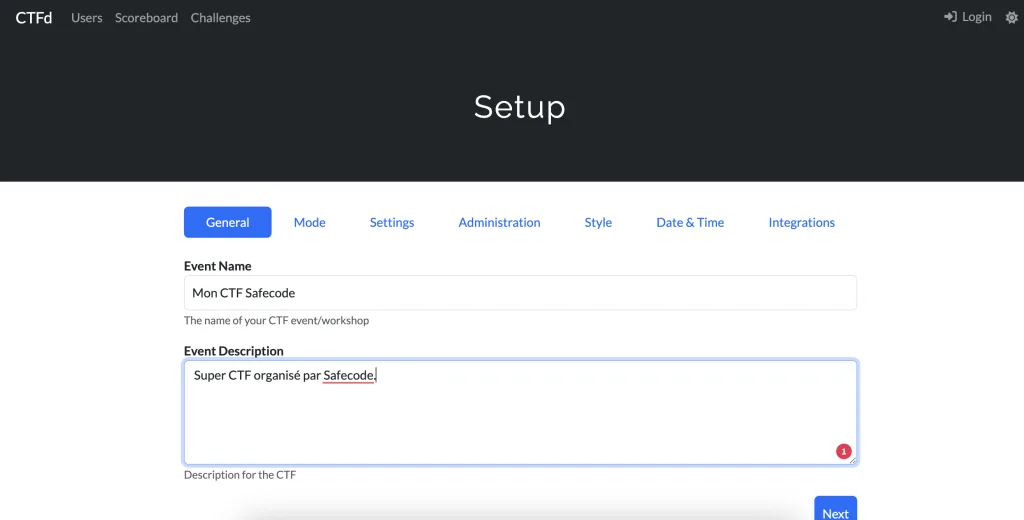
Setup takes 7 steps:
- General
- Mode
- Settings
- Administration
- Style
- Date & Time
- Integrations
General
Mode
On this screen, you choose between Team Mode and User Mode, depending on the type of competition you want to run.
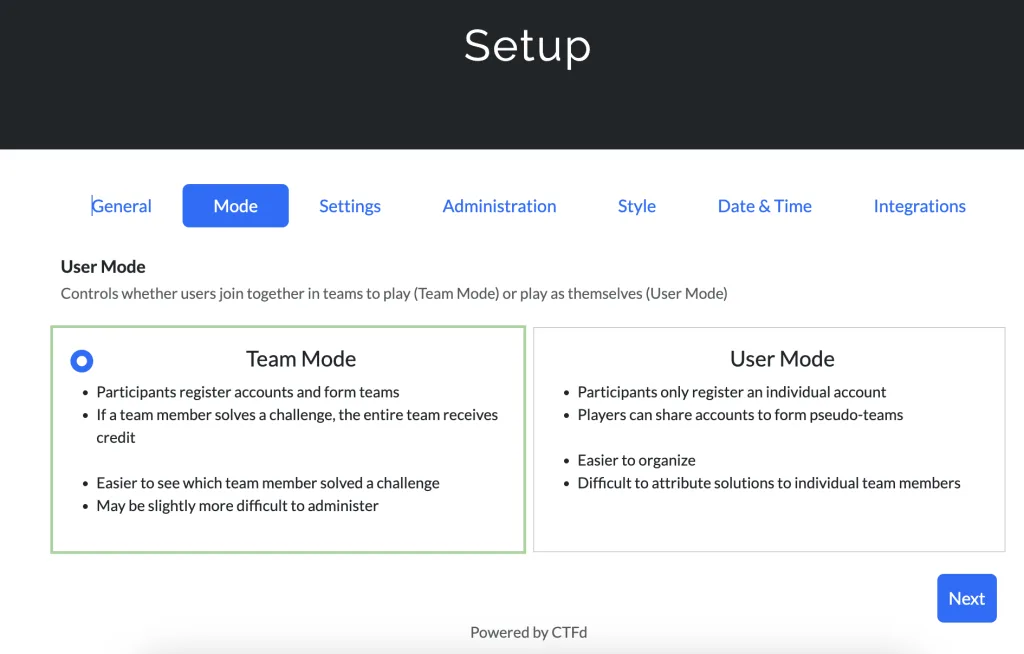
- 🤝 Team Mode: team spirit takes centre stage! Participants form teams, and when one member solves a challenge, the whole team benefits.
- 👤 User Mode: each participant plays solo. Accounts are individual, but nothing stops players from collaborating unofficially (check the rules!).
Settings
This screen sets your competition’s visibility and basic rules. Don’t panic, it’s simple! First, decide whether challenges are visible only to registered participants (private mode) or to everyone from the start (public mode).
You can also require email confirmation at registration. It’s handy for preventing fake accounts, but you can turn it off if you want to move fast. Finally, if you enabled team mode, you can cap the number of players per team.
Administration
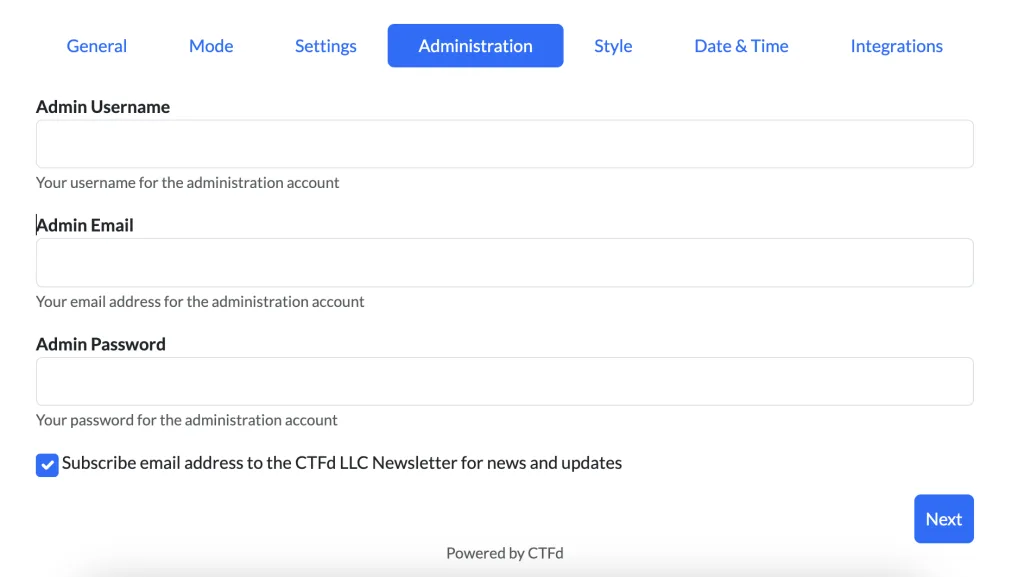
Here, you set up the administrator account for your CTFd instance. This account manages the entire platform, so take a moment to fill in the details carefully and save them in your password manager!
If you want to keep up with CTFd news, leave the newsletter subscription box checked.
Style
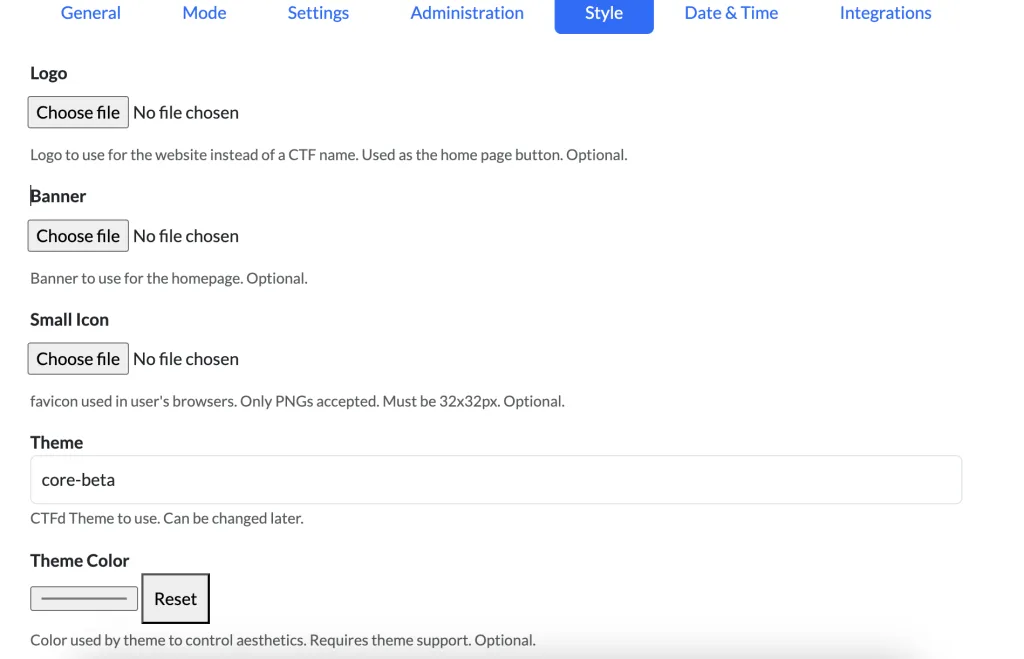
On this screen, you customise your CTFd platform’s style to give it a visual identity.
Start by adding a logo, which doubles as a link back to the home page. You can also set a banner to brighten up your home page and catch participants’ attention. Don’t forget the small icon (favicon) shown in browser tabs: it must be a 32×32-pixel PNG.
Next, pick one of the available themes to set the overall design; you can change it at any time. Finally, select a main colour (Theme Color) to match your taste or your event’s colours.
Date & Time
Now it’s time to set your competition’s schedule so it fits your plans and your participants’.
Start by entering your CTF’s start date and time, which locks challenges until the official opening. Then set the end date and time to close the competition. Times are shown with a UTC preview so everyone is in sync, whatever their time zone.
Note: these settings are optional.
Integrations
This screen offers to integrate your competition with MajorLeagueCyber (MLC), a tool designed to track and promote cybersecurity events. It’s a great option if you want to give your CTF even more visibility!
Your CTF can be listed on MLC’s website and mailing list, boosting its visibility. You can also track participant statistics and share them, while sending real-time updates to platforms like Slack or Discord to keep teams connected. Finally, MLC lets you archive your challenges, team participation and other key information.
CTFd FAQ
In this section, I answer the questions I’ve been asked or have asked myself. Feel free to comment on the article so I can update the FAQ.
How do I import challenges?
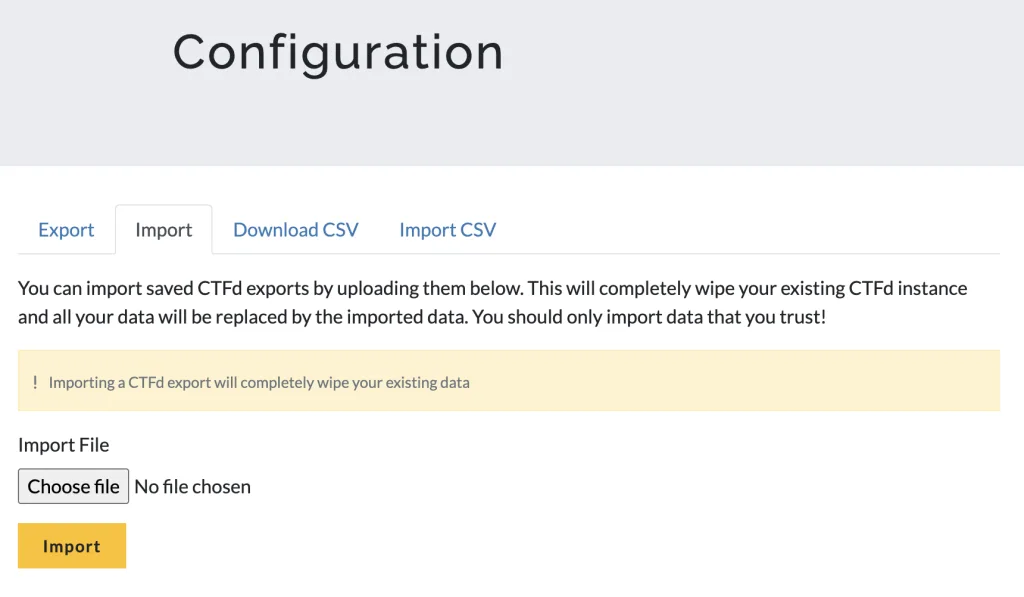
Importing challenges into CTFd is fairly simple, but it depends on what you want to do. If you have a full export of a CTFd instance (a .zip file), you can import everything from the admin tab. Go to Admin Panel > Config > Backup > Import & export > Import and upload your file.
⚠️ Be careful, though: this type of import wipes all existing data. Make sure you won’t lose anything important before starting it.
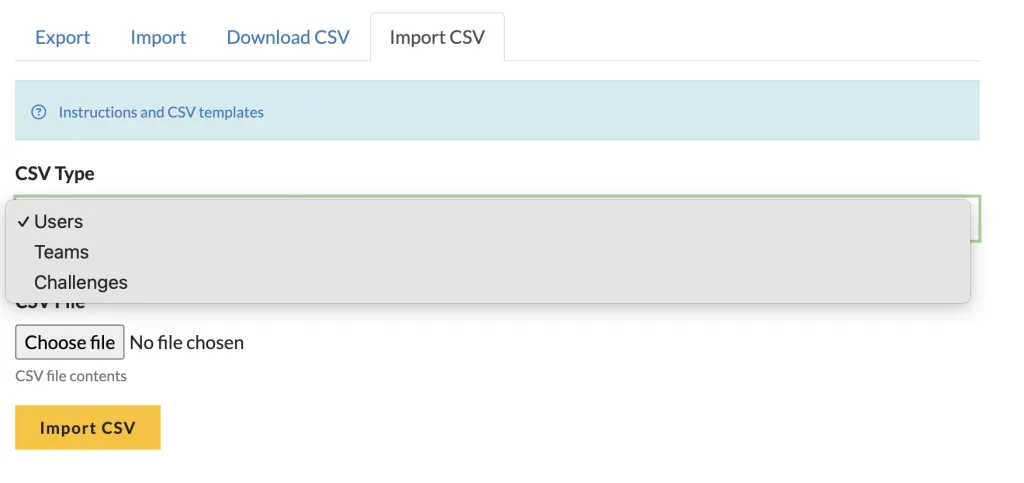
You can also add specific challenges through CSV files, which is handy if you don’t want to overwrite everything already in place. To do so, go to Admin Panel > Config > Backup > Import & export > Import CSV, download the template, fill it in with your data and import it. Columns such as description, flags, hints and tags are optional, so there’s no need to fill everything in. Simple and effective!
How do I export challenges?
Exporting from CTFd lets you back up your data or share it with other users. There are two main options: export a full instance, or extract specific data as CSV files.
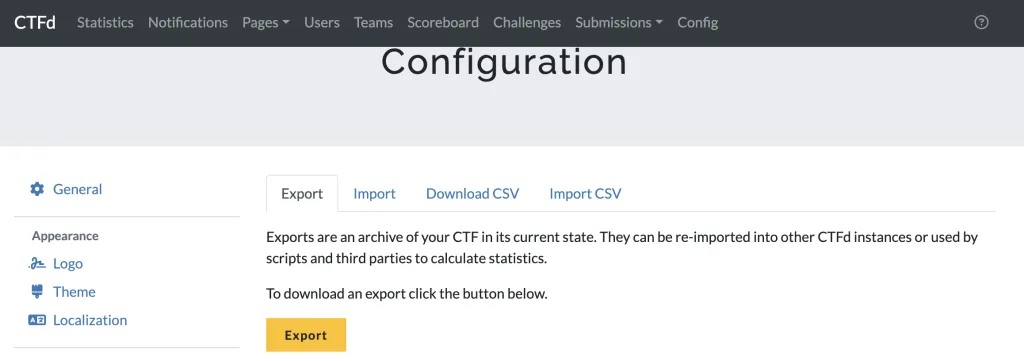
Exporting a full instance couldn’t be easier! For a complete backup (users, scores, challenges, the whole lot), create a .zip file from Admin Panel > Config > Backup > Export. This file contains everything you need to restore or migrate your CTF. Handy, right?
If you only want to export challenges, use the Challenges tab in the Admin panel. From there, you can generate a CSV file with all your challenge details, ready to share or reuse. It’s the perfect option if you just want to back up the challenges without everything else.
A quick tip: before migrating to another CTFd version, make sure your export is compatible. Moving from 1.x to 2.x or later may require a migration script to adapt the data. Once that’s sorted, export/import is child’s play!
CTFd also lets you export specific data from your instance as CSV files, perfect for analysing it in a spreadsheet, backing it up or sharing it. To export, go to Admin Panel > Config > Backup > Download CSV, then select the table you want from the drop-down list. Challenges, users with their custom fields (users+fields) or the scoreboard: you can pick exactly what you need. Once the table is selected, download the generated CSV file and use it however you like.
⚠️ Warning: downloaded CSV files aren’t guaranteed to be re-importable into CTFd without some adjustments. If you plan to re-import them, make sure they follow the platform’s required CSV templates.
Can CTFd run Attack & Defense competitions?
No. CTFd doesn’t natively support the Attack & Defense format.
How do I limit the number of attempts on a challenge?
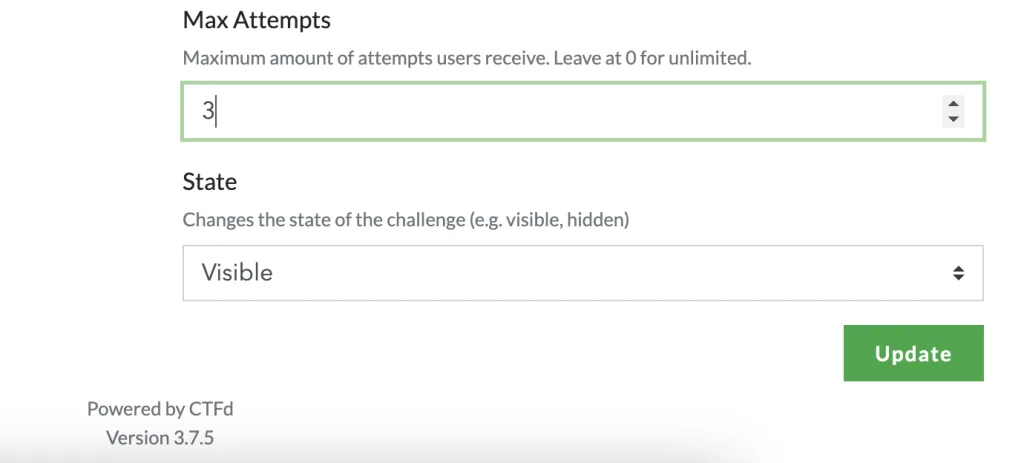
To prevent brute-forcing, CTFd offers a “Max Attempts” option when you create a challenge. You can set the maximum number of attempts before the challenge locks.
For more advanced protection, you can use Fail2ban to block IP addresses that abuse submissions.
Conclusion
CTFd is undoubtedly one of the best solutions for running CTF competitions on a budget. With its intuitive interface, flexibility and active community, it suits educational events and professional competitions alike. Whether you’re a teacher, a cybersecurity professional or an event organiser, CTFd gives you every tool you need to create a great experience!

Leave a Reply