
Is the “Your connection is not private” or “Not secure” message in Chrome stopping you from accessing your favourite sites? Here are 5 tested solutions to fix this frustrating SSL/TLS error for good.
Why Chrome shows this error
The “connection is not secure” error means that Chrome cannot verify the authenticity of the website’s SSL certificate. This security protocol encrypts data between your browser and the server to protect your sensitive information.
The main causes include expired or invalid SSL/TLS certificates, an incorrect system clock, an overly restrictive antivirus, a corrupted browser cache or faulty network settings. In 80% of cases, it is a temporary problem on the website’s side.
Chrome shows different messages depending on the error: NET::ERR_CERT_DATE_INVALID (expired certificate), NET::ERR_CERT_COMMON_NAME_INVALID (wrong domain name) or NET::ERR_CERT_AUTHORITY_INVALID (unrecognised authority).
This protection shields you from man-in-the-middle attacks in which hackers intercept your data. Never ignore it on sensitive sites (banking, online shopping, email).
Fix 1: Check your system date and time
Check your Windows date and time immediately. A difference of a few hours is enough to invalidate every SSL certificate, since they have a strict validity period.
Right-click the clock (taskbar) → “Adjust date/time” → Turn on “Set time automatically” and “Set time zone automatically”.
Restart Chrome after the correction. This solution fixes 60% of SSL error cases according to Microsoft statistics.
Fix 2: Clear the cache and browsing data
Open Chrome → Ctrl+Shift+Delete → select “All time” as the time range → tick “Cached images and files”, “Cookies and other site data” and “Hosted app data”.
Click “Clear data” and restart Chrome. A corrupted cache often causes SSL conflicts, especially on frequently visited sites.
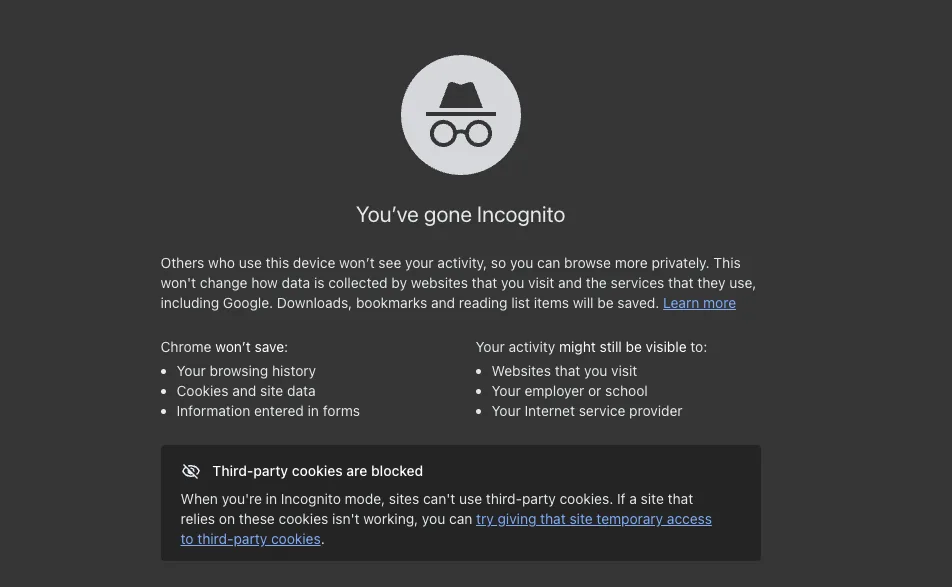
Quick alternative: use incognito mode (Ctrl+Shift+N) to test whether the site works without the cache.
Fix 3: Temporarily disable your antivirus
Some antivirus programs (Kaspersky, Bitdefender) inspect HTTPS connections and can block legitimate certificates. Temporarily disable web/network protection in your antivirus.
If the site then works, add it to your antivirus exceptions rather than disabling protection permanently. Check your antivirus documentation for how to do this.
Important: turn your antivirus back on immediately after the test to keep your overall security.
Fix 4: Reset Chrome settings
In Chrome: Menu (3 dots) → Settings → Advanced → “Reset and clean up” → “Restore settings to their original defaults”.
This removes problematic extensions, resets security settings and cleans up corrupted data without affecting your bookmarks or passwords.
Restart Chrome and try accessing the site again. An effective solution for errors that persist after a Chrome update.
Fix 5: Bypass temporarily (trusted sites only)
Only for sites you trust completely: click “Advanced” on the error screen → “Proceed to [site] (unsafe)”.
Warning: never use this option on banking, shopping or login sites. Reserve it for internal company or development sites.
It is better to contact the site administrator to report the certificate problem than to bypass security every time.
Preventing future SSL errors
Keep Chrome up to date, sync your system clock properly and avoid dubious security extensions that interfere with SSL. A healthy browser means fewer certificate errors.

Leave a Reply